
What Should Go on a ServiceNow Asset Tag?
 Yansa Labs Blog
·
Oct 02, 2026
·
article
Yansa Labs Blog
·
Oct 02, 2026
·
article
A technician scanning equipment into an inventory workflow needs an asset tag value. Someone using a phone may want to open the device’s record in ServiceNow. You can support either use, or both, but it helps to decide what a scan should do before designing the label.
For most equipment, start with your company logo, a readable asset tag, and a model or device name. Add the barcode or QR code that fits how your team works. Asset Tag Maker lets you combine these in a template inside ServiceNow and preview it with your asset records before generating the labels.

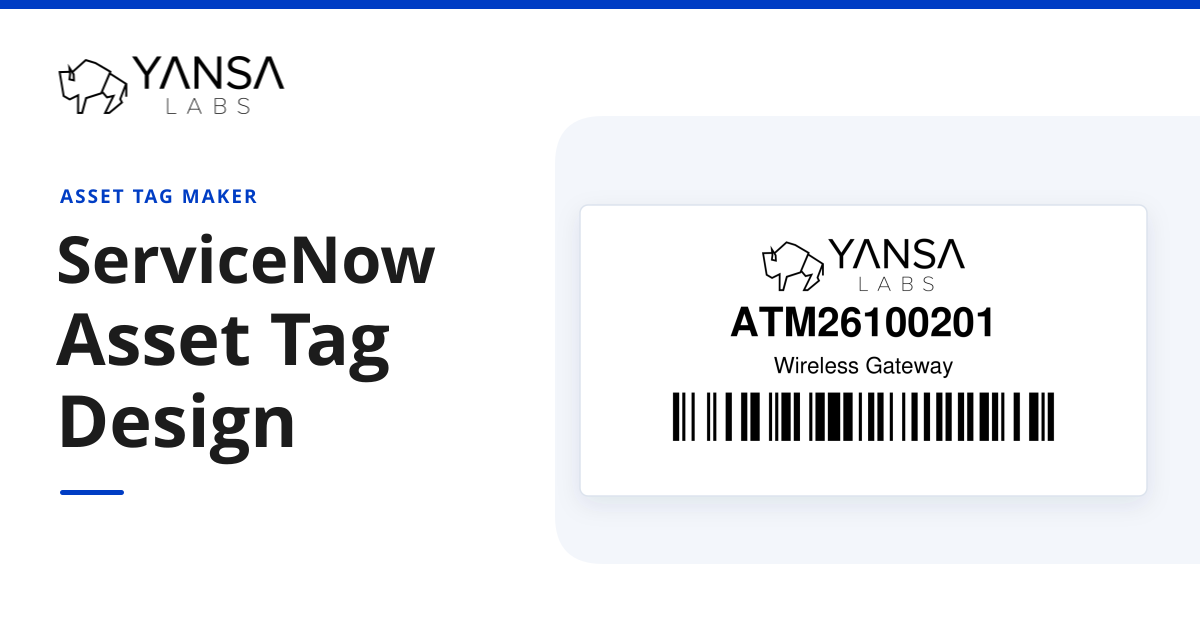
Logo, readable asset tag, model and Code128 barcode in the generated PDF.
Logo, asset tag and model
Company logo. A logo makes the label recognizable as belonging to your organization. Use a version that remains clear at the size it will actually print. A detailed logo with a tiny tagline may need a simpler approved version. Keep it separate from the barcode or QR code.
Asset tag. Give the asset number enough room to be read without scanning. Someone may need to type it into ServiceNow, read it over the phone, or identify a device with a damaged barcode. If the barcode carries the asset number, the printed text and encoded value should come from the same field.
Model or device name. A short description helps a person confirm what they’re looking at. Pick the field that will be recognizable to your team. A model name may work well for laptops; a device name may be more useful for equipment with a specific function. Preview the actual display values from ServiceNow, because a reference field’s value can be longer than the name you had in mind.
A serial number is useful when your process calls for it, but it doesn’t have to appear on every label. If the manufacturer’s serial is already readable on the device, consider whether repeating it is worth the space. Avoid reducing all the text to fit an extra field that people rarely use.
Barcode, QR code, or both?
Return an asset number
Use a barcode carrying the asset tag when the receiving application expects that identifier. In Asset Tag Maker, {asset_tag} inserts the value from the current source record. Code128 is one option for an alphanumeric asset tag, provided your scanner and application support it.
The scanner reads the value; the application still needs to know what to do with it. Test it in the field or workflow your technicians actually use, including any scanner settings that add a prefix, suffix or Enter key.
Open the ServiceNow record
A QR code can carry the URL for the corresponding record. That can be useful when the person scanning wants to see current information rather than enter an identifier into a form.
Use a record link in the correct instance, and try it on the intended phone or scanner as the intended user. The user may need to sign in and must have permission to read the record. The QR code doesn’t grant access. If your users work in a portal or workspace, check that destination too; a link that works for an administrator may be the wrong experience for everyone else.
Include both
Both codes can be useful when you have both workflows. Make their purposes clear, for example with “Asset number” and “Open record” next to the appropriate code. If adding the second code makes either one too small to scan reliably, use a larger label or reconsider whether both are needed.
The barcode content guide covers the supported configuration and dynamic field values. The code format and the value it contains are separate choices: a QR code can hold an identifier too, so its appearance alone doesn’t tell a user what scanning it will do.
Designing the label in Asset Tag Maker
Start with the label stock and dimensions you intend to use. In Label Designer , the Geometry tab shows the page and label measurements. A Label Configuration can be shared by multiple templates, so copy it first if your changes should apply only to this design.
On the Design tab, add the logo as an Image , the asset tag and model/name as Field from record elements, and your barcode or QR code. Images come from ServiceNow’s Images table; working with them requires the image_admin role in addition to the designer’s access requirements.
The illustrated template uses the Yansa logo and two fields from Asset [alm_asset]: asset_tag and model. The model displays as “Wireless Gateway.” Both the large asset number and the Code128 barcode use asset_tag.

Previewing the branded label with an asset record in Label Designer.
Leave room around the codes
Arrange the content so the asset tag is easy to find. Leave enough space for the model/name to grow, and keep text and artwork outside the codes’ clear margins. For QR codes, that margin must be at least four small squares, or modules, wide on every side. Black codes on a plain white background are a sensible starting point. Don’t place a company logo over the QR pattern or stretch the code to fill an odd-shaped gap.
Use Preview w/ Record to bring in actual field values, then Preview PDF to check the generated layout. Check both: browser rendering and PDF rendering can differ. QR size also depends on the encoded data and printer/scanner resolution, so there isn’t one minimum overall size that will work for every design.
https://www.youtube.com/embed/yX2K1eI0Pg4?feature=oembed
Yansa Labs’ Label Designer demo.
The Label Designer guide covers the controls in more detail.
A few gotchas
Long names and missing values
Switch the preview to a record with a long model name or identifier. Also try a record with a missing optional field. Check for wrapping, clipped text, overlap, and empty captions that no longer explain anything.
If a model name won’t fit, give it another line or use a shorter display value that still identifies the equipment. Don’t shorten the asset identifier or change the encoded value just to make the layout fit. If the asset tag is missing, correct the record before generating its label.
Information that changes
Keep the assigned user, location and status in ServiceNow unless there is a specific reason to print them. Equipment can move or change hands while its label stays attached. A QR link to the record lets an authorized user look up those current details without printing them on the label.
The same applies to inspection notes or other temporary text. If that information needs to be on a physical tag, plan for replacing the tag when it changes.
Reprinting an old PDF
A saved label PDF keeps the values used when it was generated. Download it again when you need an identical replacement. If the content needs to reflect a changed record or design, generate a new PDF. A separate Tag Creation Job lets you keep the earlier output.
Reset Job to New deletes the job’s attachments, Tagged Records and child jobs. It isn’t needed just to download an existing PDF. The Tag Creation Job guide explains that behavior.
Print a sample before the full run
A Data Source selects the records and a Tag Creation Job combines them with the label template to produce the PDF. Use the same source table for the template and Data Source, and check the records your filter matches before starting the job.

From asset records and a template to a saved label PDF.
Start with a small batch on the actual label stock. Check the print dialog’s paper size and scaling, the alignment across the sheet, and whether the text is readable at its printed size. Apply a label to a representative device and scan it where people will use it. For a record-link QR code, follow it through sign-in and confirm it opens the correct record for an ordinary user.
The label material and placement matter too. Choose stock for the surface and conditions it will face, and leave the code accessible to the scanner. Avery’s durability guidance points out that adhesion can vary on textured plastics and print durability depends on the printer and settings. Test the label on the equipment, as well as on the sheet.
If the sample prints and scans correctly, use that template and those settings for the rest of the batch. The Asset Tag Maker documentation has the setup details, and the product page links to the trial if you’d like to build a label for your own assets.
The post What Should Go on a ServiceNow Asset Tag? first appeared on Yansa Labs Blog.
https://blog.yansalabs.com/2026/10/02/asset-tag-maker-label-sheet-walkthrough/