
Strategic Resource Capacity Planning - Configure custom planning attributes for capacity planning
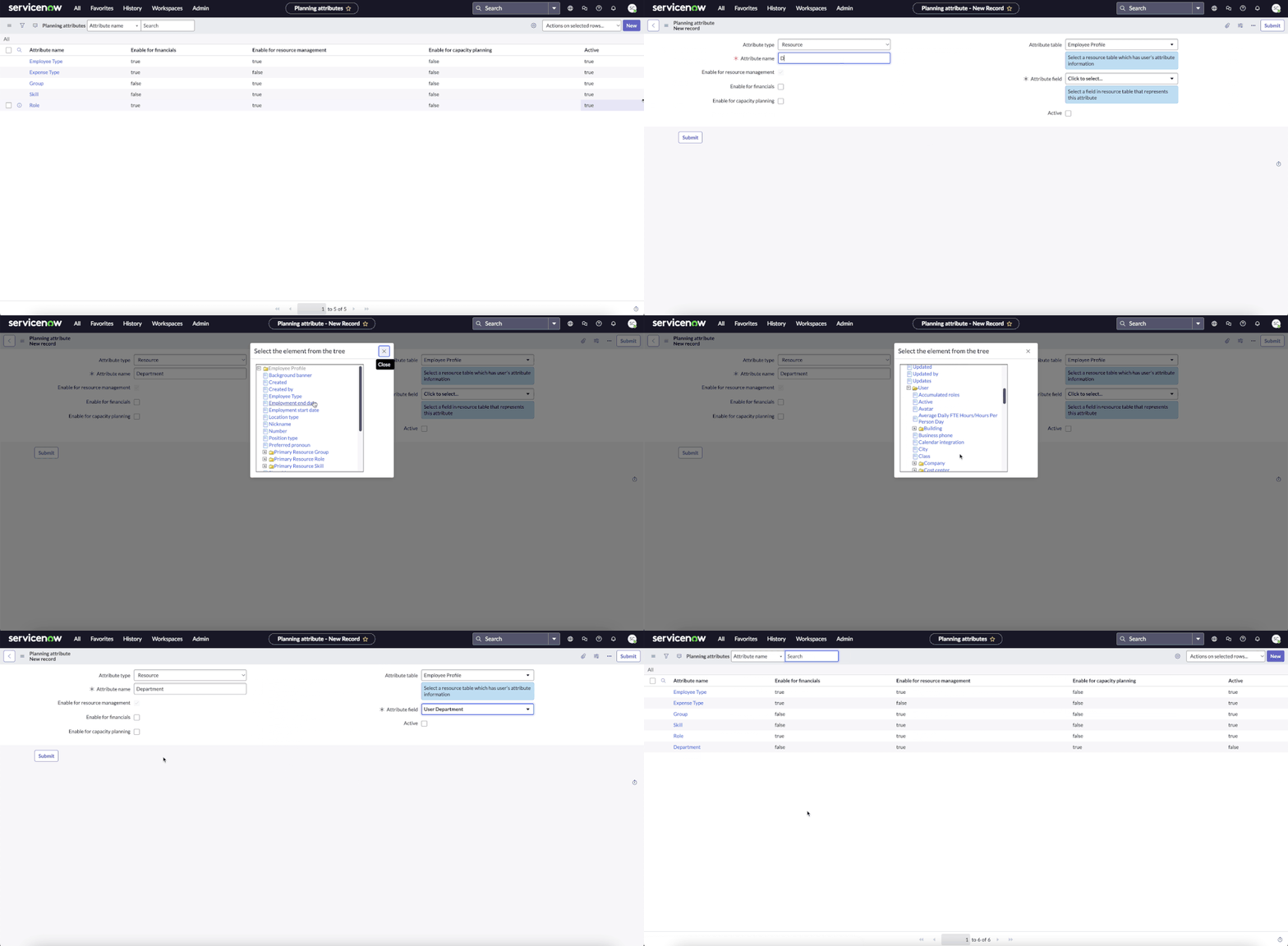
This article shows how to configure custom planning attributes and use them in capacity planning in Portfolio Planning/Strategic Planning Workspace. This article is to be used along with the previous article on "How to set up and view capacity plans".
Creating new Planning Attribute
An admin can create and enable a custom planning attribute by navigating to Planning Attributes under Strategic Planning. While creating the planning attribute, if the desired attribute field does not exist in the employee profile table, admin might have to create the field in the employee profile table.

Fields for creating column configurations
Before creating the column configuration, we have to make sure that the field exist in the relevant tables. In cases, where the field does not exist in the lookup tables, we have to create the field in those tables.

Creating the field in the look up tables
An admin can create the field in the lookup tables.
Creating column configuration
For each table add the relevant field created in the previous step and make the planning attribute active.

The Admin can now follow the steps in the previous article on "How to set up and view capacity plans" and start using capacity plans
https://www.servicenow.com/community/spm-articles/strategic-resource-capacity-planning-configure-custom-planning/ta-p/2793224