
ServiceNow Things to Know 64: Killer ServiceNow Forms Background
 Prashant LearnIT
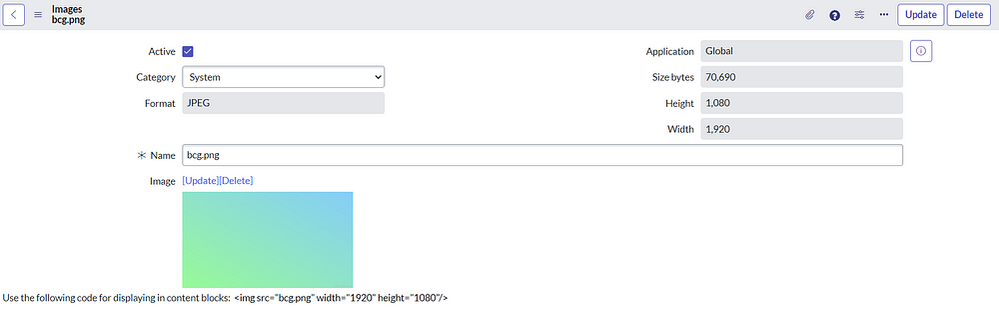
Steps to add Forms Background:
Step 1 — Download an appropriate background for your form.
Step 2 — Create an Image Record (bcg.png) and upload your downloaded background.

Step 3 — Create a UI Macro (Back_Form_Incident) and add the image path that was created and you can add some styles for the form as well to look good.

Step 4 — Create a UI Formatter to call UI Macro and you can add this formatter to the table (Ex- I have taken for incident) using form layout.

Step 5 — Add Formatter to the form (incident).

Step 6 — You can enjoy the changes for your relevant form (incident).

If my content helped you in anyway, please mark this content as BOOKMARK, SUBSCRIBE & HELPFUL
Best Regards,
Prashant Kumar (LearnIT)
YouTube Channel LearnIT: https://www.youtube.com/@learnitwithprashant
Blog LearnIT: https://medium.com/@LearnITbyPrashant
Prashant Kumar LinkedIn: https://www.linkedin.com/in/learnitbyprashant/
ServiceNow Community Prashant Kumar - https://www.servicenow.com/community/user/viewprofilepage/user-id/19635
https://www.servicenow.com/community/developer-blog/servicenow-things-to-know-64-killer-servicenow-forms-background/ba-p/2777075