
How to show a custom Next Experience UI from an HR Lifecycle Event activity on Playbook
Custom view rendered on Workspace:

Below are the steps:
- Create a new HR task type adding a new choice record that describes the purpose of your custom view.
Link: https://.service-now.com/nav_to.do?uri=sys_dictionary.do?sys_id=fdd33926873d71108be310a83cbb35a9
(Table: sn_hr_core_task, Column: hr_task_type)
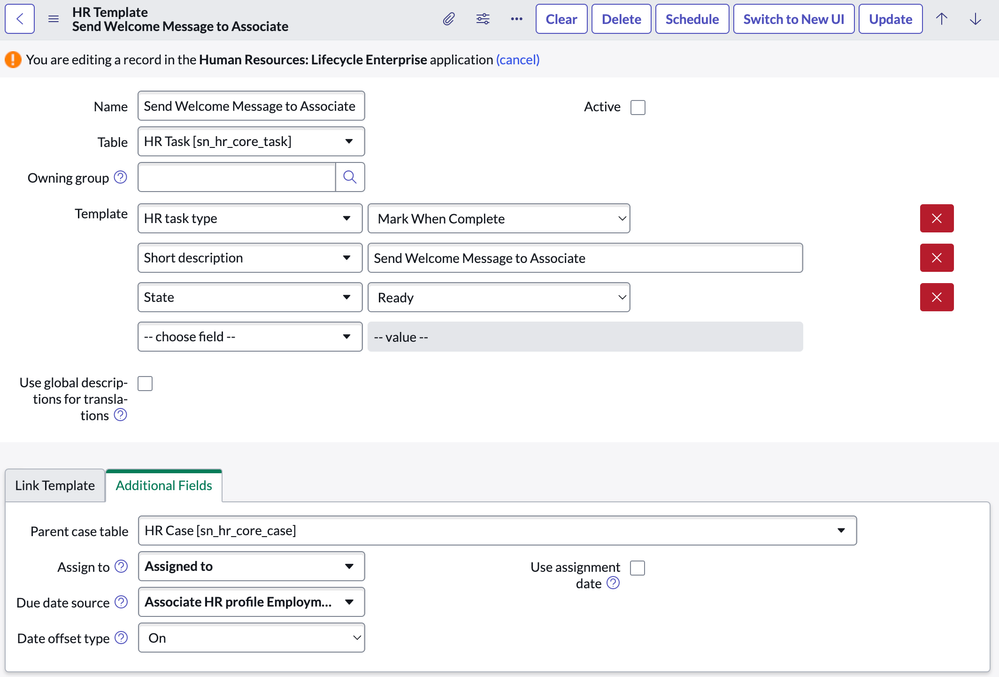
- Create a new HR Template, using existing ones as inspiration. It is important to set the HR task type defined above.
Link: https:// .service-now.com/now/nav/ui/classic/params/target/sn_hr_core_template_list.do

- Clone an existing Activity UI Layout (I suggest “HR Record UIB”) if you want to isolate your implementation, or use an existing one associating your custom Activity UI through override. Become familiar with the Next Experience Architecture:
Screenshot author Arnoud Kooi

Link: https://.service-now.com/now/nav/ui/classic/params/target/sys_pd_activity_type_list.do
Then, click on “Edit Default UI in UI Builder”. UI Builder will open with a valid starting point for your implementation:

Rename the Default Activity UI record to one easier to identify, it will be useful later.
- Create an HR Playbook Card Configuration following these three points:
- As a condition, use the HR task type defined in point 1.
- As activity UI, use the one created in point 3.
- For the remaining attributes, use an existing configuration as a source of inspiration or use the appropriate ones for your implementation.
- As a condition, use the HR task type defined in point 1.
Link: https://.service-now.com/now/nav/ui/classic/params/target/sn_hr_le_playbook_card_config_list.do
Example:

- Open your HR Lifecycle Event process and add a new activity with the HR Template record created in point 2.
Example:

Labels:

https://www.servicenow.com/community/next-experience-articles/how-to-show-a-custom-next-experience-ui-from-a-hr-lifecycle/ta-p/2734462