
Strategic Resource Capacity Planning - How to set it up and view capacity plans
This article shows how to configure and use the capacity planning feature in Portfolio Planning/Strategic Planning Workspace.
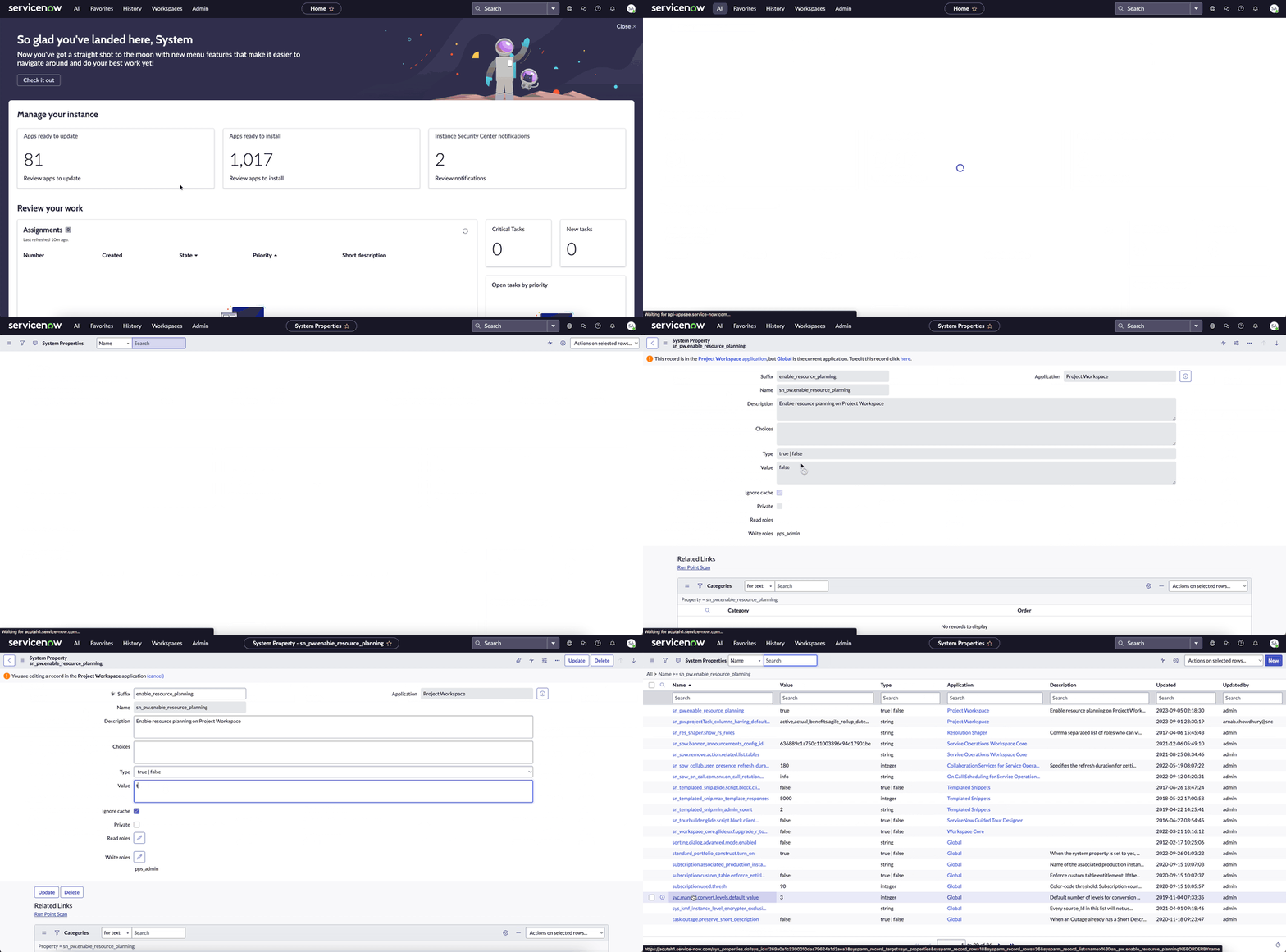
Enabling resource planning from system properties
The admin can enable resource planning from the system properties by following the steps below:
- Go to system properties table: sys_properties
- Set the value of the property "sn_pw.enable_resource_planning" to "true"

Enable internal integrations and generate default mapping
Internal integrations need to be enabled if you want data to flow from the execution side to the strategic side. If internal integration is not enabled, the demand, project and epic data will not be synced with planning items data in Portfolio/Strategic Planning Workspace. The admin can enable (if not enabled) and generate default mapping configurations from a related link in the Alignment Integration record

Configure planning attributes for capacity planning
Enable the relevant planning attributes for capacity planning by navigating to the planning attribute page. Group, role and skill are provided OOB. Custom planning attributes can also be configured. Planning attributes can be configured by the admin by navigating to Planning Attributes under Strategic Planning and enabling the relevant attributes. While enabling a planning attribute, some column configurations may have to be created.

Generate employee profiles for the resources
The admin can generate the employee profiles of the resources to be considered for capacity planning. Resources are users who are mapped to 'pps_resource' role. The employee profiles is where the resources are mapped to the attributes of the resources. This is a 2 step process as mentioned below:
- Update the employee definition by navigating to employee definition in employee profile
- Generate employee profiles from the link provided

Populate the attributes of the resources in the employee profiles
Populate the attributes of resources in the employee profiles in 2 ways:
- Using the related link in the employee profile record page. The link will populate the values for primary resource group, role and skill only if the resources are mapped to only one group, role and skill respectively.
- Using the scheduled job "Populate primary attributes for all resources" to populate the primary resource group, role and skill. Please note that the job only populates the planning attributes provided out of the box. It does not populate custom planning attributes.
A resource may have multiple attribute values, however for the purpose of capacity planning a resource needs to be mapped to only one attribute value. So, if a resource is mapped to multiple groups, a primary group needs to be specified in the employee profile.


Generate capacity for the resources
Generate capacity for the planning period based on the attributes of the resources. The capacity is calculated based on the schedules of the resources and is displayed in FTE. The capacity user role(sn_align_ws.spw_capacity_user) is required to generate capacity.
For generating capacity, navigate to Portfolio/Strategic Planning workspace and from the L1 menu navigate to the Manage Resource Capacity page. Fill in the values for the duration and the attribute values for which capacity needs to be generated and generate capacity. To keep the capacity data in sync with the real time changes to resource data, the capacity needs to be regenerated. 
Assigning resources on work items
Capacity planning currently supports projects, epics and demands. The resource user role(resource_user) is required to create Resource Assignments. Resource Assignments for projects can be created in the new Project Workspace. Resource Assignments can be created on named resources and on the attributes of resources. Resource Assignments created on attributes of resources are in 'unassigned' state as named resource has not yet been assigned.

For demands and epics, Resource Assignments can be created using the new Resource Assignment form.

Resource Assignments in Capacity Planning:
- Resource Assignments created on project tasks are rolled up to the project in Capacity Planning.
- Resource Assignments created on demand tasks are not rolled up to the demand in Capacity Planning.
- Resource Assignments created on demand get copied to projects when the demand is converted to a project.
- A user can create Resource Assignments for planning items in Portfolio/Strategic Planning Workspace.
- Resource Assignments are dependent on the planned start and end dates of the planning item.
Setting the resource criteria and view the capacity plan
Planning item should be in prioritised state for it to be shown in capacity planning tab. When a user first lands on the capacity planning tab, user must select a resource criteria that should be considered for building the capacity plan. Should the need arise to change the resource criteria, the user can change it from the Resource Criteria button in the capacity planning tab.

https://www.servicenow.com/community/spm-articles/strategic-resource-capacity-planning-how-to-set-it-up-and-view/ta-p/2664988