
Action Names In UI Actions
function saveAsDraft() {  var gm = new GlideModal('glide_confirm_standard', true, 600);
 gm.setTitle('Save as Draft');
 gm.setPreference('title', 'Approval is required when a "Draft" Action is submitted. Are you sure you want to save this Action as "Draft"?');
 gm.setPreference('warning', 'true');
 gm.setPreference('onPromptComplete', function() {
 gsftSubmit(null, g_form.getFormElement(), 'save_as_draft'); //MUST call the 'Action name' set in this UI Action
 });
 gm.setPreference('onPromptCancel', function() {
 return false;
 });
 gm.render();
} if (typeof window == 'undefined') {
 action.setRedirectURL(current);
 current.state = -6;
 current.update();
}
Overriding a UI Action from a parent table
Another use case for specifying an Action name is to override a preexisting UI action from a parent table or global. This comes in handy when developing Scoped applications that use extension tables.
A client asked me to provide a confirmation message every time the user clicks the Update UI action on a specific record type. There are a few ways to achieve this requirement; one requires editing the Global UI action for Update to add this dialog for a particular table. However, doing so would incur technical debt on a UI Action record used across the platform. Instead, I will make a copy of the Update UI Action specifically for the table where I need this message to appear.

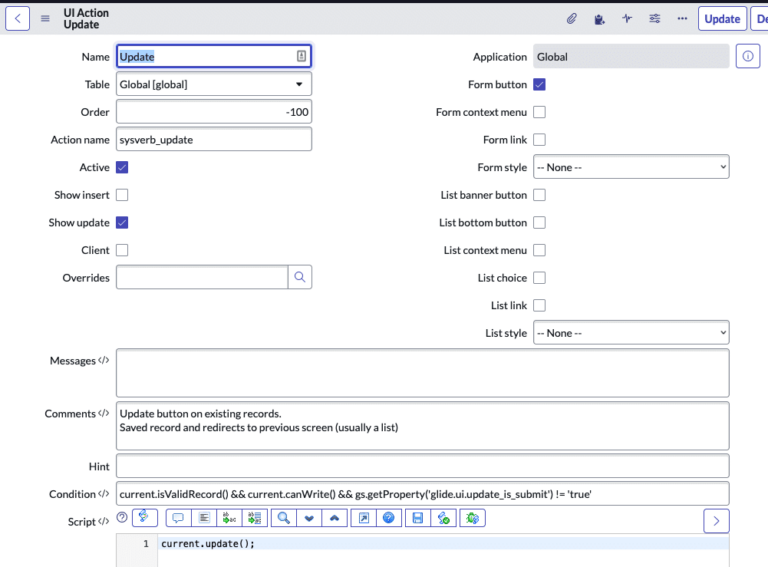
The Action name for the Global UI action for Update is sysverb_update. In the new UI action, I will use that same Action name, so that the system knows it should override the Global UI Action. Without this Action name, I would end up with two Update buttons on my form.
Name: Update Table: My custom Task table extension
Action name: sysverb_update
Form button: true Condition: current.isValidRecord() && current.canWrite() && gs.getProperty(‘glide.ui.update_is_submit’) != ‘true’ (copied from the original UI Action)
Script:
current.update();
gs.addInfoMessage(current.getDisplayValue() + ' has been updated.');
This method allows us to override any of the values from the original UI action; for example, we can change the Order, Condition, and even the Name without editing the Global UI Action.
Do Actions by any other name smell as sweet?
Nope. As we can see, choosing the right Action name can be quite significant, so Shakespeare’s thoughts on naming roses don’t apply here. I recommend using an action name every time you create a new UI action, even if you don’t immediately need either of the use cases above. If you are overriding an existing UI Action, the Action name will need to match the original exactly; otherwise, ensure that your action name is unique.
Labels:
https://www.servicenow.com/community/developer-blog/action-names-in-ui-actions/ba-p/2639113