
Getting Started! 3 Simple Steps to Integrate Microsoft Teams and ServiceNow!
Import
·
Mar 23, 2023
·
article
In this article, you'll learn how to establish connection between ServiceNow and Microsoft. This is a requirement before you can enable any ServiceNow apps within Teams (Virtual Agent, Employee Center, etc.)
In future articles, we will walk-through enabling Employee Center on Teams.
| Pre-Requisite | Details |
|---|---|
| ServiceNow Instance | Rome or above |
| Plugins | Microsoft Integrations - Core |
| Microsoft User/Role/Email | User: Give the user a name that helps you remember it’s for the ServiceNow Integration. In our example, we use the following: “NOWMSFT_Integration” Roles: Either “Global Administrator” or both “Teams Administrator” and “Application Administrator” roles Email: The email for the user you plan the integration fo. If you're testing things out with your own Azure instance, your email should look like the following: “@.onmicrosoft.com”. |
| ServiceNow User/Role/Email | User: Give the user a name that helps you remember it’s for the Microsoft Integration. In our example, we use the following: “NOWMSFT_Integration Role: Either “admin” OR “external_app_install_admin” Email: Use the email for the respective Microsoft User |
| Step | Preview of Step |
|---|---|
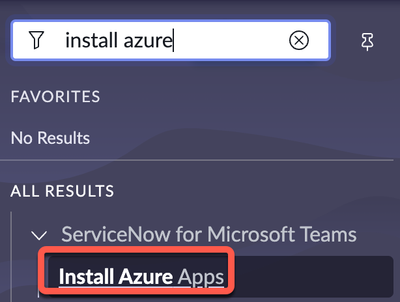
| Step 1: Select "Install Azure Apps" from Filter Navigator |  |
| Step 2: Click on the “Install” button next to Microsoft Teams |  |
| Step 3: Select either "Pick an Account" or “Use another account” that has been dedicated for the integration |  |
Confirm "Successfully connected to Microsoft Azure"

View original source
https://www.servicenow.com/community/ms-teams-articles/getting-started-3-simple-steps-to-integrate-microsoft-teams-and/ta-p/2508535