
Embedded Knowledge Article in Catalog Item
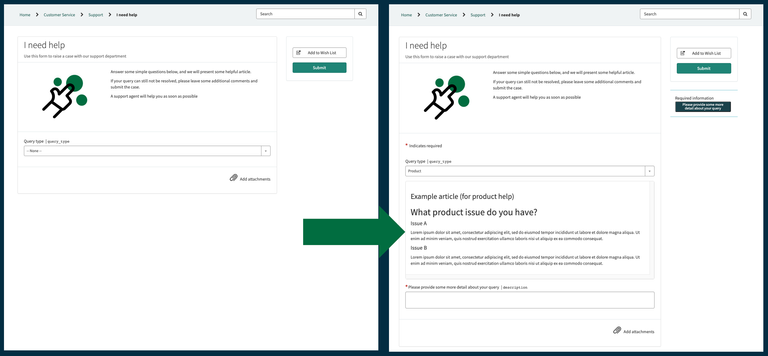
- Customer submitted a catalog item without realizing that a knowledge article was available to help them solve their issue.
Wastes end-user & agent time
Show contextual knowledge article in catalog item
Unfortunately: No OOTB way to do this in ServiceNow
Example below. Based on selection (Query type = Product), it shows a published knowledge article (as a variable)

Additional details
- You can have more than one embedded knowledge article in catalog item
- Use UI policies etc. just as you would a variable
Details of solution:
Step 1 & 2: Do only once for your instance
Step 3 & 4: Do for each article / variable pair you want to use in a catalog item.

Step 1: Configure the widget
Note: I've added comments in the code to help understand what's going on.
1a) Create a new Service Portal widget (Service Portal > Widgets > New)
1b) Give it a suitable name, like "Embedded Article"
1c) (Optional): Give it a suitable ID, like "embedded_article"
1d) Enter the following Body HTML template:
<div class="articleContainer">

    <!-- Shows the article's title - You can remove this line if you don't want to show this -->
    <h3 ng-bind-html="data.articleTitle"></h3>

    <!-- This line loads the article's HTML into the body of this widget -->
    <div ng-init="onLoad()" ng-bind-html="data.articleHTML"></div>

</div>
1e) Enter the following Server script:
(function() {
    // Only run the below after the client controller calls this. Reason: Catalog item loads quicker & the script below requires the variable_name loaded in the page
    if(input) {

        var cat_item = $sp.getParameter('sys_id');        // Get the sys_id of the current record producer shown on the page

        var var_gr = new GlideRecord('item_option_new');  // Initiate a glide record object (Variables table)
        var_gr.addQuery('cat_item', cat_item);            // Query the r-producer calling this embedded article widget
        var_gr.addQuery('sys_id', input.varSysId);        // Query the variable   calling this embedded article widget
        var_gr.addQuery('sp_widget', gs.getProperty('embedded.article.widget')); // the sys_id of this widget;
        var_gr.query();                                   // Execute the query

        if (var_gr.next()) {
            data.kbNumber = var_gr.default_value.toString();// Get the default value set in this variable of the record producer

            var article = new GlideRecord('kb_knowledge');  // Initiate a glide record object (knowledge article table)
            article.addQuery('number', data.kbNumber);      // The KB number corresponds to the default value set in this variable of the record producer
            article.addQuery('workflow_state', 'published');// The KB article should be in the published state to be shown to end-users
            article.query();                                // Execute the query

            if(article.next()) { // If an article is found, show the article
                data.articleTitle = article.getDisplayValue('short_description').toString();               // Capture the title of the article
                data.articleHTML  = article.text.toString().replace('<![CDATA[ ', '').replace(' ]]>', ''); // Capture & clean the body HTML of the article
            } else {             // If an article is not found, display the below message
                data.articleHTML = '<p>Article missing or out-dated. Please contact support.<p>';
            }
        } else {               // If no variable is found in this record producer that is calling this widget, then show the below message
            data.articleHTML = '<p>This widget has been called in error. Please contact support.<p>';
        }
    }
})();
1f) Enter the following Client controller script:
api.controller = function($scope) { // REMEBER to add $scope in the parameter list here (not in by default)
    var c = this;

    $scope.onLoad = function() // This function is called by line 7 of the HTML Template
    {
        var fieldSysId       = $scope.page.field.variable_name.toString(); // Gets the variable_name calling this widget
        $scope.data.varSysId = fieldSysId.replace('IO:', '');              // Extracts the sys_id of the variable
        c.server.update();                                                 // Executes code in the server script to fetch the data from the article
    };
};
1g) Enter the following CSS (Note: you can play around with what suits your look & feel requirement):
/* You can specify the css details to your specifications */
.articleContainer {
  overflow:scroll;
  max-height: 500px;
  border: 1px solid #DDDDDD;
  border-radius: 5px;
  padding: 16px;
}
Step 2: Add system property
Note: The widget above's server script (line 10) references its own sys_id. It's best practice not to reference sys_ids in script, therefore you can create a system property to house that value and reference the system property in the script.
2a) Go to the System Properties list (type "sys_properties.list" into the Application Navigator Filter and press enter)
2b) Click "New" on the System Properties list page
2c) In the new System Property record, give the property a suitable suffix or name, like "embedded.article.widget"
2d) Set the property value, by copy-pasting the sys_id of the Embedded Article widget you created in step 1, and submit.
2e) Verify that the name of the system property (scope+suffix = name) is set correctly in line 10 of the Server script.

Step 3: The Article
3a) Publish an article (or make sure an published article is available)
3b) Take note of the knowledge article number
Example (Number = KB0010001):

Step 4: Create the variable
4a) Create a new variable (item_option_new) in the record producer or catalog item you want to display the article in.
4b) Set the Type = Custom.
4c) Set the Widget (tab "Type Specification") as the widget you created in Step 1.
4d) Set the default value as the article number you want displayed. Example KB0010001.

And that's it. You can now use this variable to show a published knowledge article, directly in you catalog item. This means:
1) You can have more than 1 article in your catalog item (repeat steps 3&4 for each article).
2) You can show and hide different articles, based on choices the end-user selects in the catalog item (Using catalog UI policies of catalog client scrips).
3) If the author of the knowledge article updates and published a new version of the article, it automatically updates in all catalog items it is used in.
Service Catalog
Knowledge Articles
https://www.servicenow.com/community/developer-articles/embedded-knowledge-article-in-catalog-item/ta-p/2496571