
Understanding Field Styling in ServiceNow: Forms vs Lists
 New article articles in ServiceNow Community
·
Jan 31, 2026
·
article
New article articles in ServiceNow Community
·
Jan 31, 2026
·
article
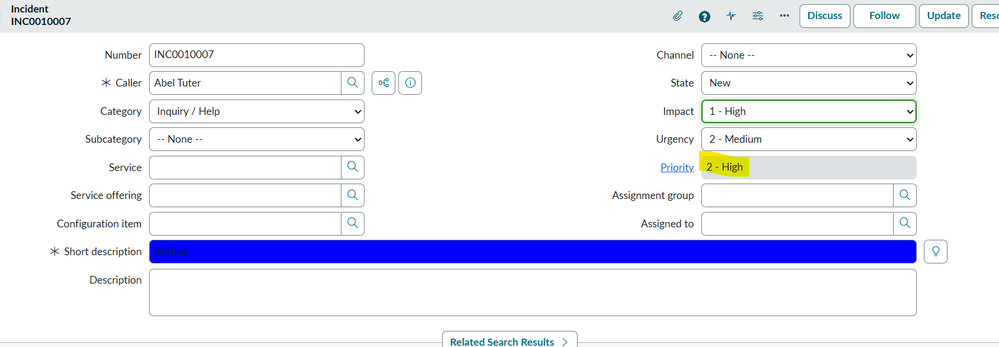
Field styling in ServiceNow is often misunderstood because there are two very different approaches that people refer to as “field styling”:
- Form-level styling using Client Scripts (DOM-based)
- List-level Field Styling using UI Styles & Field Styles (OOTB)
These approaches behave very differently, have different support boundaries, and should not be used interchangeably.
This article explains:
- The difference between form styling and field styling
- Where each approach works
- Common mistakes
- Best practices for real-world implementations
1. Form-Level Styling (Client Script / DOM-based)
This approach is typically used to change how a field looks on the form, for example changing the background color of Short description.

Example
function onLoad() {
    var ctrl = g_form.getControl('short_description');
    if (ctrl) {
        ctrl.style.backgroundColor = 'blue';
        ctrl.style.color = 'white';
    }
}
Supported stylings

Key characteristics
- Works only on Classic / Platform UI
- Applies only to forms
- Uses direct DOM manipulation
- Does not apply to lists or reports
Important limitations
 Not upgrade-safe
- Breaks easily if UI markup changes
- Not supported in:
- Service Operations Workspace
- Agent Workspace
- UI Builder
- Service Portal
- Service Operations Workspace
This approach should be used sparingly and only for temporary or highly controlled use cases.
2. True Field Styling (UI Styles + Field Styles)
This is the official, supported field styling mechanism in ServiceNow.
It is what produces:
- Colored dots in lists
- Highlighted values (Priority, State, Risk, etc.)
- Consistent visual indicators across lists
3. How Field Styling Works
Defines how the field should look:
- Text color
- Background color
- Font weight
- Icons

Example:
color: orange;
font-weight: bold;
Field Styles
Defines when the style applies:
- Table
- Field
- Condition
- UI Style
Example:
On Incident table, when Priority = 2 → apply yellow indicator
4. Where Field Styling Is Supported
 Supported
- List views
- Related lists
- List reports
- Classic UI forms (limited)
Not Supported
- Service Operations Workspace
- Agent Workspace
- UI Builder / Now Experience
- Service Portal
Workspace UIs completely ignore Field Styles by design.
5. One Critical Rule (Very Commonly Missed)
Field Styling Is Global
Once configured, a Field Style:
- Applies to all list views
- Applies to all users
- Applies to all reports using that field
There is no supported way to:
- Apply styling to only one list
- Apply styling to only one report
- Apply styling only on a dashboard
This behavior is by design.
6. When Field Styling Is a Good Fit
Recommended use cases:
- Incident Priority
- Incident State
- Change Risk
- SLA breach indicators
- Approval status
These fields are:
- Global
- Status-driven
- Easy to interpret visually
7. When Field Styling Is the Wrong Tool
Avoid Field Styling for:
- Report-specific coloring
- Role-based visibility
- Workspace UI customization
- Complex or highly contextual logic
For these scenarios, use:
- Performance Analytics widgets
- Dashboard table widgets
- UI Builder visibility rules
- UI Policies / Flows
Final Note
Field Styling is a visual aid, not a UI framework or logic engine.When used correctly, it improves readability and user experience.
When misused, it creates confusion and technical debt.
https://www.servicenow.com/community/developer-blog/understanding-field-styling-in-servicenow-forms-vs-lists/ba-p/3479094