
PUSH notifications Setup on ServiceNow Mobile Agent App
This article will help to setup the push notifications for Agent App.
Follow below steps.
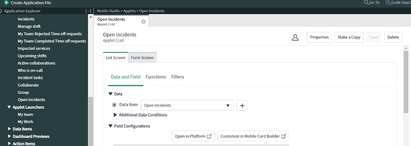
1. Create applet on the mobile studio under ITSM Mobile Agent or your scoped application.

After creation of applet get the sysid of applet go the sys_sg_screen table list or click System Mobile> Screens module and filter name with Applet name+ Record Screen.
2. Go the Record Screen of your applet and copy sys_id and will provide this sys_id on Push Message Content script on DocumentId variable.

3. Create Push message content go to the system Notification> Push> Push Message Content.

4. On new form give name and select ServiceNow Mobile Application on Push app field.
use below script and replace applet record screen sysid on DocumentId.
(function buildJSON( /*GlideRecord*/ current, /*String*/ message, /*Object*/ attributes) {
    var layoutFieldGenerator = new global.NotificationLayoutFieldGenerator();
    var identifier = layoutFieldGenerator.layoutField(current.sys_class_name, current.sys_id, "number");
    var description = layoutFieldGenerator.layoutField(current.sys_class_name, current.sys_id, "short_description");
    var state = layoutFieldGenerator.layoutField(current.sys_class_name, current.sys_id, "state");
    var json = {};
    json = {
        "aps": {
            "sound": "default"
        },
        "Redirection": {
            "Title": gs.getMessage("New Incident ASssigned"),
            "To": "Embedded",
            "Destination": {
                "DocumentId": "8f5f07a89757111051cb341e6253af2c", //need to give the applet form screen sysid
                "ItemId": current.sys_id
            },
            "Context": {
                "ContextType": "RECORD",
                "TableName": current.sys_class_name,
                "RecordId": current.sys_id
            }
        },
        "Layout": {
            "Status": state,
            "Identifier": identifier,
            "Description": description
        }
    };
    return json;
})(current, message, attributes);
5. Go to system Notification> Push> Push Messages and Create the Push Message.
Select the Push app and Table and Push content which created above.
Give the Message as per your need and use ${fieldname} to get the value.

6. After Creation of Push message then create notification on the same table and give the conditions on When to Send tab and provide users on who will receive tab and What to send add Push Message which created before.
Note: you can Set notification view as Push Notification View.
Refer below screen

7. Now go the System Notification > Push > Push Application and open the ServiceNow Mobile Application

8. Under related Push Default Registrations and click new and select add notification which created on step 6.
Refer below

- Output

https://www.servicenow.com/community/it-service-management-articles/push-notifications-setup-on-servicenow-mobile-agent-app/ta-p/2400222