
Event Organizer 1.0 -Overview
INTRODUCTION
A simple and intuitive tool that digitizes event management for seamless experience for event organizers and attendees
Event Organizer App is an enterprise tool to organize and manage events, engage with attendees, facilitate signups, and share events. It also enables attendees to view all events, register or RSVP or access all event-specific details
Key Features
- Create, manage in-person, virtual or hybrid events
- Add Event details like Agenda, Speaker
- Customize registration form
- Customize event Detail Page
- Invite specific attendees, groups or keep it open to all
- Import attendee list from spreadsheet
- Manage attendees
- Configure emails and outlook invites
- Add event resources (text sections, documents, links, pictures
- Add collaborators
- Copy Event
- Dashboard to access all upcoming and past events you are organizing and attending
- Register/RSVP seamlessly
- Edit Registration, Register on behalf of others
To download and try the app visit Innovation Lab in the ServiceNow store.
How to use Event Organizer as an Event creator
Create event
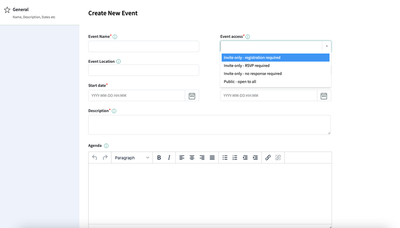
Create an event with basic details like name, date, description. Add a location or link for in-person, virtual or hybrid events. Set-up your event as a Registration, RSVP, no response required OR open to all. You can also add speakers too. They can be internal user, or you can add an external speaker detail as well.
You can choose to make attendee list visible to all. Additionally, customize the event detail page banner with text, banner color and image of your choice.

Customize Registration Form
The app has a default registration form built for you. You can however completely customize it by adding/deleting fields and sections. There is a wide variety of field types to choose from while adding new fields. You can also reorder fields and sections or activate/deactivate them.
Furthermore, you can customize the Registration Form Banner with text, color, Images
| | | | | |
| ------------------------------------------------------------------------------------------------------------------------------------------------------- | ---------------------------------------------------------------------------------------------------------------------------------------------------- | | |
| | 
| | | | |
| | | 
| | | 
| | | | |
Add/manage Attendees
Add individual users or system groups as event attendees. These users should be present in the sys_user table to be added as attendees. You can also import attendees from a csv file. Upload a CSV file with "Email" as header of first column and email Ids as values. Email Ids should exist in the system


Once you have added attendees, you can manage them by adding more or deleting
You can also view attendee status and search for them. Also, the detailed attendee and registration data can be exported into excel

Configure emails and calendar invite
On this tab, you can configure calendar invite and turn Outlook Calendar invite Off or On.
Also, there are 2 types of notifications which can be customized.
- System notifications - Event Invite and Cancellation
- User-triggered notifications-Registration Reminder and Event Reminder
You can choose to activate any of these notifications and customize the subject and body of all emails


Add/manage resources
You can add event related information which can be accessed by all attendees. This includes
- Text sections ex: FAQ, Know before you go.
- Links ex: SharePoint URLs
- Documents ex: pdf, word doc, excel
- Pictures
You can manage the resources after event creation also by deleting or adding more.

Publish your event
While you are adding details to your event you can save it and it will remain in Draft status. When you are ready to make it visible to all attendees, click on Publish and then this event will show up on the dashboard for all attendees. This will also trigger the event invite email if you had activated it on the Emails tab.

How to use Event Organizer as an Event attendee
View Event Dashboard
Here you can access all the events you have been invited to or all events open to all.

Register/RSVP self or others
You can Register or RSVP for the event right from the dashboard or from the event detail page after clicking on the Event card.

You can also register on other’s behalf by adding their details. The person you are registering for should be part of attendee list for the event. You can also edit any registration you have submitted. If you want to see the option to register others, you should first start registering others and not yourself.

Access all the event information
You can see event details like date/time, agenda, any contact details, speakers, meeting links

Event Organizer
https://www.servicenow.com/community/innovation-lab-articles/event-organizer-1-0-overview/ta-p/2379336