
Servicenow Integration with Veeam
ServiceNow Integration with Veeam
vSnow App is an application to integrate Veeam Backup Enterpriser Manager with ServiceNow
Download : https://www.veeambp.com/vsnow.html
vSnowApp for ServiceNow:
The application offers integration with Veeam Enterprise Manager.
vSnowApp provides following capabilities:
- Performance Dashboard
- Incidents Management
- Manage Backup Jobs.
- Failover Plans
- Agent Jobs
- Backup Servers Management
How vSnowApp Works:
vSnowApp function as an intermediary between Veeam Enterprise Manager and ServiceNow, after you deploy the vSnowApp, you can manage reporting and management of backup infrastructure from ServiceNow.
Pre-requisites:
- ServiceNow MID Server
- Veeam Enterprise Manager
Supported ServiceNow Instances:
- New York
- Orlando
- London
- Madrid
How vSnowApp communicate with Veeam Enterprise Manager and ServiceNow:
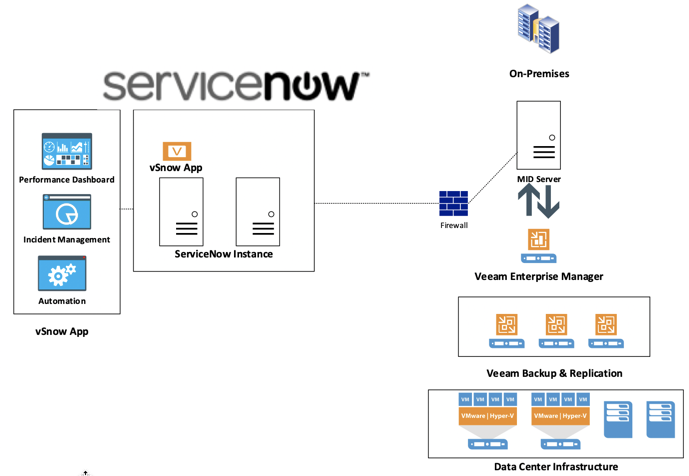
- vSnowApp deployed on ServiceNow instance.
- vSnowApp communicate with Veeam Enterprise Manager via ServiceNow MID Server.
- vSnowApp query backup data collection and store it in ServiceNow for reporting.
- If you perform any action, vSnow App pass the instructions to MID Server to execute actions on Veeam Enterprise manager via API.
Diagram Visualized the vSnow App Flow:
Requirements:
Before you start to use vSnowApp read the requirements:
vSnow App Requirement:
| Service | Purpose |
|---|---|
| MID Server | To communication with Veeam Enterprise Manager |
| Veeam Enterprise Manager | To manage the Veeam Backup & Replication from vSnow App we need to have veeam Enterprise Manager. |
Used Ports:
| From | To | Ports |
|---|---|---|
| ServiceNow Instance | MID Server | 443 |
| MID Server | Veeam Enterprise Manager | 9398 (Default Https) |
To verify communication with Veeam Enterprise manager, use the following from MID Server:
https://:9398/web
The web page will response the API token.
How to Deploy vSNow App to ServiceNow Instance:
- To deploy application to target instance. Navigate to Retrieved Update sets from left navigation. Click it to open a list of all previously retrieved update sets.
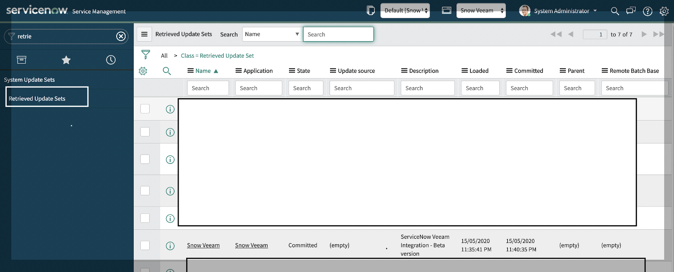
- On the bottom of the list you’ll find a UI Link “Import XML”. Click it and upload the update set.
- You will find an update set with the name ‘Snow Veeam’. Open the update set record.
- Click Preview Update Set.
- As this is a scoped application and developed on New york instance. You may see some errors and warnings in committing update set due to instance/Plugin/Scope mismatch. There could be some mismatch in dashboard frames.
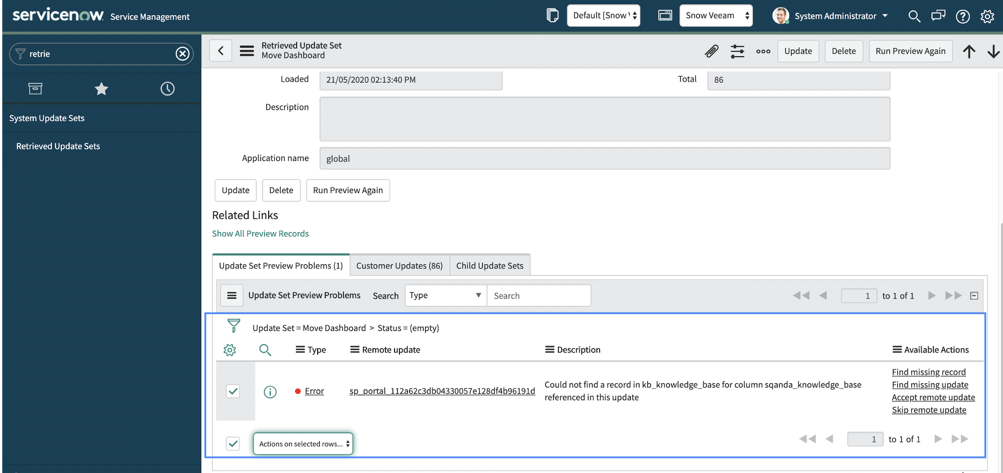
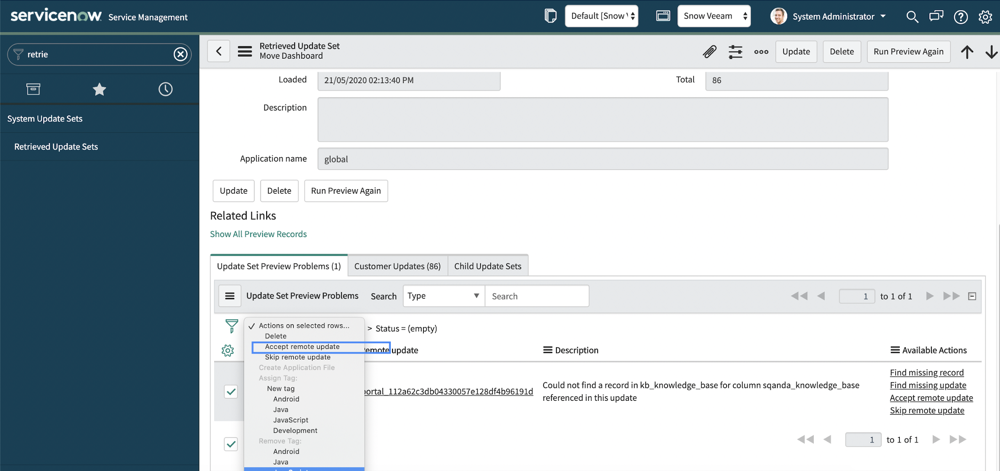
- To address errors in update set go to list and select all the errors.
- Click to accept remote update to all.
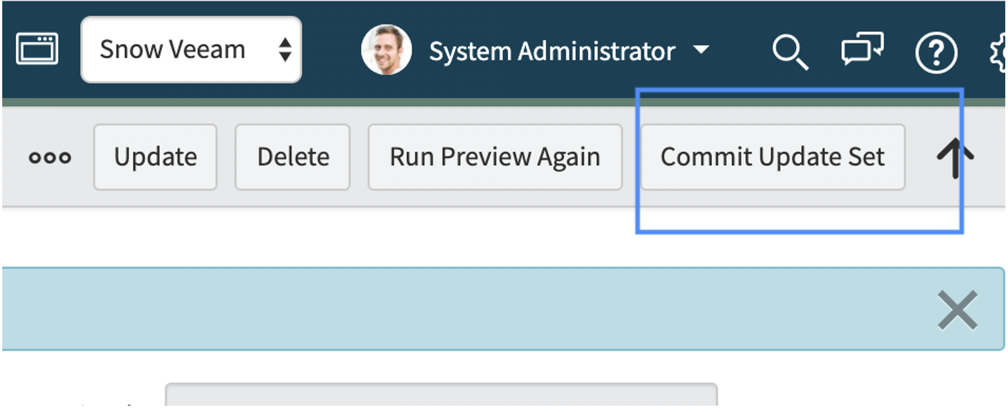
- Once all errors are addressed a ‘Commit update set’ button appears.
- Click to commit update set.
Post Update Loads
- Once the base update set is installed to Instance. Add below XML’s to the instance.
“AppConfigUniqueRecord.xml”
- To add XML record to instance, go to any list layout and on column label right click you mouse. You’ll find an option to import XML at last of the list.
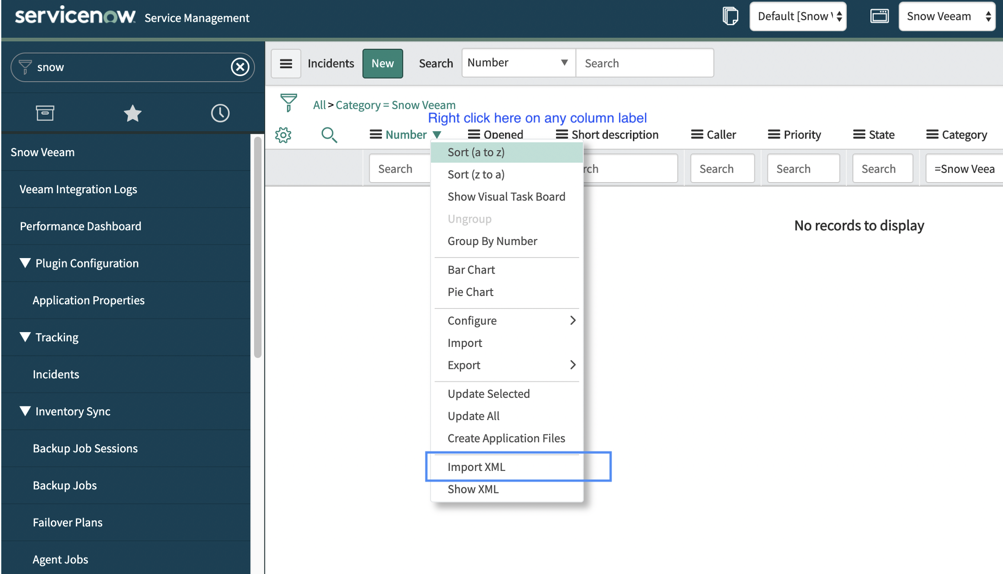
- Select to upload the Desired XML.
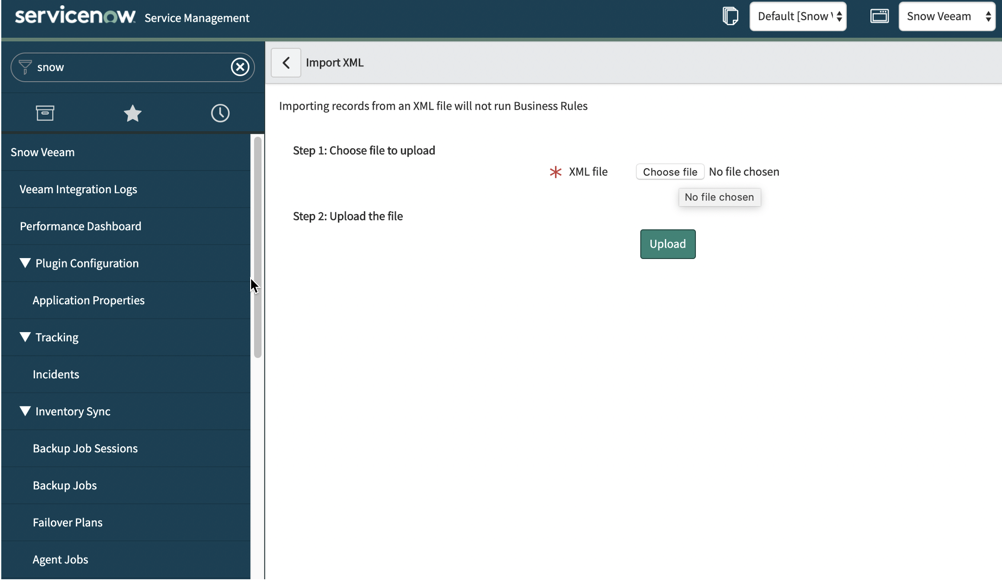
- Once the xml is loaded, navigate to Snow Veeam > Application Properties.
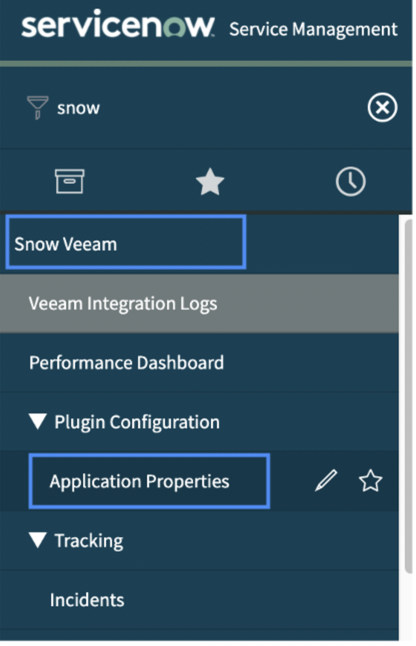
vSnow App Configuration and Options:
The section will provide information about vSnow App available options to perform certain tasks:
| Performance Dashboard | Provide overall reporting of the backup job status | |
| ------------------------- | ------------------------------------------------------------------ | |
| Plugin Configuration | To configure the MID server and Veeam enterprise manager instance. | |
| Incidents | Automatic Incident creation on backup job failure or warning | |
| Inventory Sync | To manage the backups jobs and other infrastructure. | |
| VM | To check the available restore points and perform the restores | |
| Login session history | To track the sessions between MID and Veeam Enterprise Manager. | |
| Logs | Provides the logs of vSnow App failure, success | |
How to configure the Plugin:
- Go to Application Properties under Plugin Configuration:
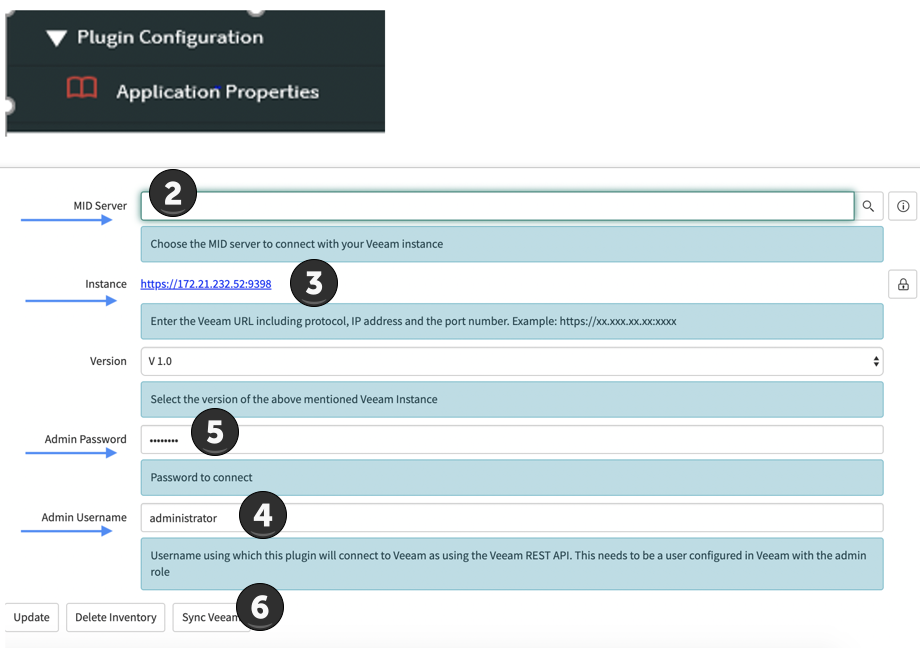
- Select the MID Server
- Veeam Enterprise Manager Instance
- Veeam Enterprise Manager Administrator username
- Veeam Enterprise Manager Administrator password.
- Click Sync Veeam to finish the configuration.
If all connections are established correctly you’ll find a message on top of the Record saying “Your session is established with session ID: xxxxxxxxxxxxx”
Note:
Other option
- Delete Inventory to clean the Veeam records for the database.
- Update to change the password of MID Server.
Modify Data Retrieval Frequency
You can change the frequency for data retrieval from Veeam Enterprise Manager.
To change:
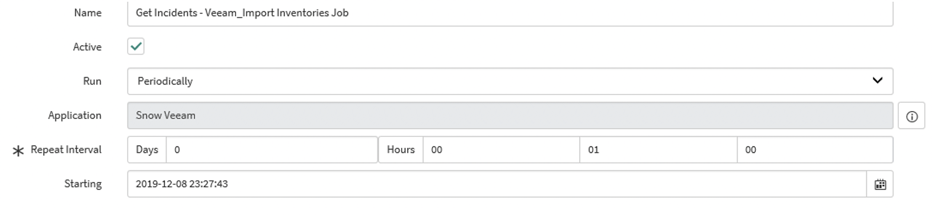
- Go to Schedule Job under Inventory Sync
- Select the Job for example to change the frequency for incident i.e. Get Incidents
- Change the frequency as you desired:
Mark  Book mark /helpful, if applicable, Thanks!!
MF Sohail Khilji.
https://www.servicenow.com/community/developer-articles/servicenow-integration-with-veeam/ta-p/2314007